How to Convert JPG to PDF on Any Device (Free & Fast)
Need to convert JPG to PDF quickly without downloading software or creating an account? Whether you’re scanning a document with your phone camera, submitting a photo ID, or packaging multiple images into a single shareable file, converting JPG to PDF is one of the most common everyday file tasks — and it should be effortless.
This guide explains exactly how to do it in seconds, covers the most common use cases, and gives you tips for getting a clean, professional result every time.
Why Convert JPG to PDF?
JPEG images and PDFs serve different purposes. Understanding the difference helps you choose the right format for each situation.
When JPG Falls Short
JPEG files are great for photos and visual sharing, but they have limitations:
- Most email and submission systems prefer documents in PDF format.
- JPEGs can’t be easily combined into a single multi-page document.
- JPEG files are harder to secure, sign, or annotate compared to PDFs.
- Professional services (banks, government portals, legal firms) routinely require PDF submissions.
When PDF Is the Right Choice
PDF is a universal document format that looks identical on every device and operating system. When you convert JPG to PDF, you get:
- A single file that can contain multiple images as separate pages.
- A format compatible with virtually every platform, email client, and submission portal.
- A document that can be password-protected, digitally signed, or annotated.
- Consistent formatting — your recipient sees exactly what you see.
How to Convert JPG to PDF (Step-by-Step)
The easiest way to convert JPG to PDF on any device is with Toolivoo’s free JPG to PDF Converter. Here’s the full process.
Step 1: Open the Converter
Go to toolivoo.com/jpg-pdf-converter/ in your browser. The tool works on desktop, tablet, and mobile — no app needed.
Step 2: Upload Your JPG Files
Click the upload area and select one or more JPG files. You can also drag and drop files directly onto the page. For multiple images, select all files at once to upload them together.
File handling notes:
- Supported formats include .jpg and .jpeg files.
- Your files are processed locally in the browser — nothing is sent to a server.
- The order you upload files determines the page order in the PDF (you can rearrange before converting).
Step 3: Arrange the Page Order (for Multiple Images)
If you’re combining multiple images into one PDF, drag and drop thumbnails to set the correct page order before converting. This is especially useful when converting scanned document pages that need to stay in sequence.
Step 4: Convert and Download
Click the convert button. Your PDF is generated instantly. Click download to save it to your device. The process typically takes under 5 seconds even for multiple images.
Common Use Cases for JPG to PDF Conversion
Submitting Documents to Portals
Banks, insurance companies, government agencies, and rental platforms typically require ID documents, proof of address, and supporting materials in PDF format. If you photographed a document with your phone, you can convert JPG to PDF in seconds before uploading it to the portal.
Combining Scanned Pages
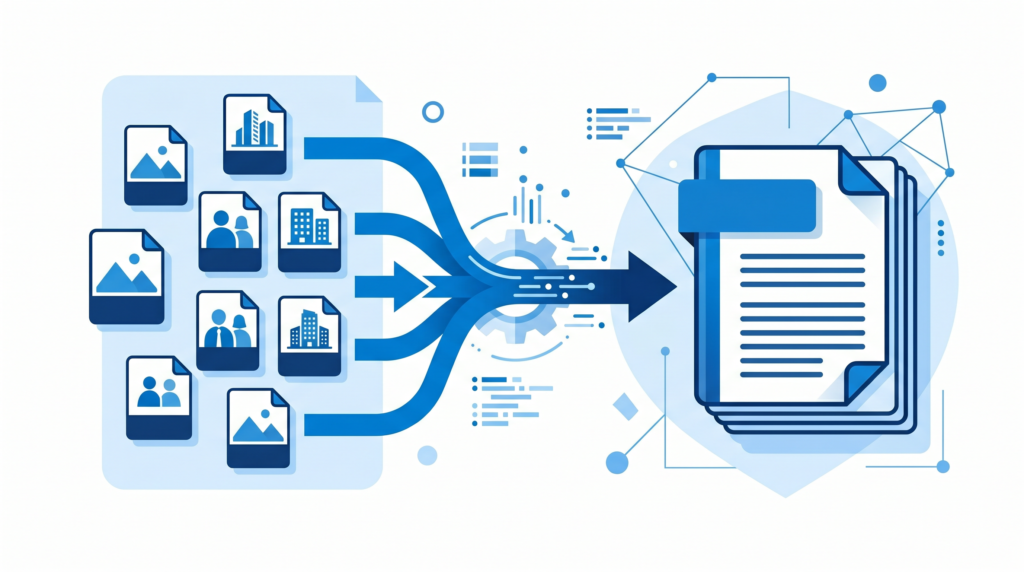
When you scan a multi-page document page by page, you end up with a folder of individual JPEGs. Converting them all at once into a single PDF creates a clean, sequential document that’s easy to share or archive.
Creating a Portfolio
Designers, artists, and photographers who want to share work samples as a PDF document can photograph or export their work as JPEGs, then use the JPG to PDF Converter to package everything into a single, professionally formatted file.
Sending Receipts and Invoices
If you photograph paper receipts for expense reporting or need to submit physical invoices digitally, converting the JPG photos to PDF ensures they open correctly for the recipient regardless of device or software.
Preserving Photo Albums
A collection of family photos or event images converted to a multi-page PDF is easier to share via email or messaging apps than a zip file of individual images — and it preserves the intended viewing order.
Tips for a High-Quality JPG to PDF Result
Photograph Documents in Good Light
If you’re photographing a physical document to convert it, the quality of the source photo determines the quality of the PDF. Use good natural lighting, hold the camera steady, and make sure the document is flat. Shadows and blur in the source image will carry through to the PDF.
Use the Highest Available Resolution
Convert from the highest-resolution version of your image. The conversion process doesn’t add quality — it embeds exactly what you provide. Starting with a high-resolution JPG results in a sharp, readable PDF.
Check Page Orientation Before Converting
Landscape photos embedded in a portrait-orientation PDF can appear small or awkwardly placed. If your images are landscape, consider setting the PDF page orientation to match before converting.
Combine Files When Sharing Multiple Images
Rather than attaching 8 individual JPEGs to an email, combine them into one PDF. Recipients appreciate a single attachment they can scroll through, and it significantly reduces the chance of a file being missed or out of order.
Frequently Asked Questions
Can I convert JPG to PDF for free?
Yes. Toolivoo’s JPG to PDF Converter is entirely free — no sign-up, no watermarks, and no file limits. It works in any browser on any device.
Can I combine multiple JPG images into one PDF?
Yes. You can upload multiple JPG files and arrange them in order before converting. Each image becomes one page in the resulting PDF.
Will my photos lose quality when converted to PDF?
No. The conversion process embeds your JPG images inside the PDF at their original resolution. There is no additional quality loss during conversion.
Does JPG to PDF conversion work on mobile?
Yes. Toolivoo’s converter works on any device with a browser — iPhone, Android, tablet, or desktop. No app download required.