How to Compress a PDF Without Losing Quality
If you want to compress PDF without losing quality, the key is choosing the right compression method for your file type and goal. The good news is that you can compress a PDF without losing quality in just a few clicks, for free, right in your browser. No software to install, no account to create, no waiting for file uploads to a distant server.
This guide explains what causes large PDF files, how PDF compression actually works, and how to get the smallest possible file size while keeping your content sharp and readable.
What Makes a PDF File So Large?
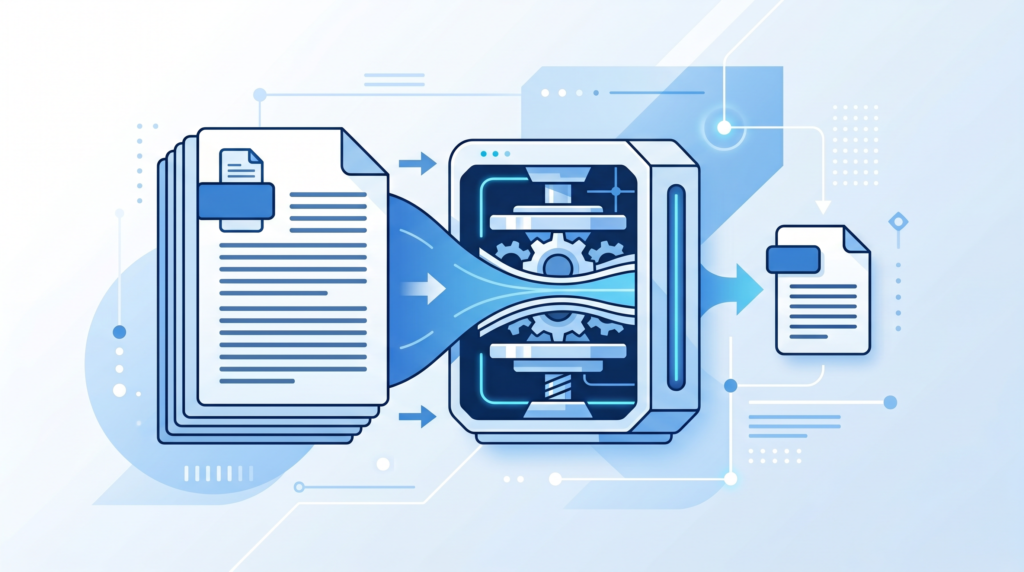
Understanding what’s bloating your PDF helps you compress it more effectively. Most large PDFs fall into one of these categories:
High-Resolution Embedded Images
This is the most common culprit. When you export a document from Word, InDesign, or a scanner, embedded images are often saved at full resolution — sometimes 300 DPI or higher. For a printed document, that’s ideal. For a PDF you’re sharing digitally, it’s overkill. Screen viewing only requires 72–96 DPI, so those high-res images carry far more data than needed.
Unoptimized Fonts
PDFs often embed entire font files, even if only a fraction of the characters in that font are used. Font subsetting — including only the characters actually present in the document — can significantly reduce the font overhead.
Metadata and Hidden Layers
Documents created in professional design tools may contain metadata, revision history, hidden layers, or color profiles that add kilobytes or megabytes to the file without contributing anything visible to the reader.
Scanned Documents
Scanned PDFs are essentially just images of pages. A multi-page scanned document can easily be 10–30MB. Compressing the image data inside the scan dramatically reduces file size without changing what you see on screen.
How to Compress a PDF Without Losing Quality (Step-by-Step)
The fastest way to compress a PDF without losing quality is with Toolivoo’s free PDF Compressor. The entire process takes under 30 seconds.
Step 1: Open the PDF Compressor
Go to toolivoo.com/pdf-compressor/. The tool loads instantly in your browser — no extensions, no plugins required.
Step 2: Upload Your PDF
Click the upload area or drag and drop your PDF directly onto the page. The file is processed locally in your browser, so no data is sent to any external server. This makes it safe even for sensitive business documents.
Step 3: Choose Compression Level
Depending on your use case, select the appropriate compression level:
- Light compression — Minimal size reduction, maximum quality. Good for documents that need to print well.
- Balanced compression — The default. Reduces file size significantly with negligible quality difference on screen. Best for most use cases.
- Maximum compression — Prioritizes the smallest possible file. Images will be noticeably more compressed, but text and layout remain clear. Ideal for file size limits or large batch shares.
Step 4: Download Your Compressed PDF
Click compress, then download your new file. The tool shows you the original size and compressed size side by side so you can see exactly how much space you saved.
When to Compress a PDF
Knowing when compression is worth applying saves you time and helps you use the right approach.
Email Attachments
Most email providers impose a 10–25MB attachment limit. Even within that limit, large attachments are slow to download on mobile connections. Compressing PDFs to under 5MB before sending is good practice, especially for reports, proposals, or invoices sent to clients.
Website PDF Downloads
If your website offers PDF downloads (brochures, guides, whitepapers), uncompressed files slow down page load and consume bandwidth. A 20MB brochure compressed to 2MB is a dramatically better experience for visitors.
Cloud Storage
Storage quotas fill up fast with high-resolution PDFs. Compressing archival documents that you rarely need to print frees up significant space without deleting anything.
Regulatory and Submission Portals
Government forms, university applications, and legal portals often impose strict file size limits (commonly 2–5MB per upload). Compression lets you meet those requirements without re-creating or splitting the document.
Tips for Maximum Quality After Compression
Always Keep the Original
Before compressing, make a copy of your original PDF. Compression is sometimes irreversible — especially at higher compression levels — so retaining the original ensures you can always go back if needed.
Choose the Right Compression Level
For documents that may eventually be printed — contracts, technical drawings, marketing materials — use light or balanced compression to preserve print-quality sharpness. For purely digital documents (email attachments, web downloads), maximum compression is usually fine.
Compress Images Before Creating the PDF
If you control the source document, reduce image resolution and file sizes before exporting to PDF. This gives you the best of both worlds: a clean, optimized source file and a small PDF.
Re-compress Only When Necessary
Like re-saving a JPEG, compressing an already-compressed PDF can stack losses. Use the PDF Compressor on original or minimally compressed PDFs for the best results.
Frequently Asked Questions
Can I compress a PDF without losing quality?
Yes. Modern PDF compression algorithms reduce file size by optimizing embedded fonts, compressing images, and removing redundant data — without visibly affecting text or layout quality.
Why is my PDF so large?
Large PDFs are usually caused by high-resolution embedded images, unoptimized fonts, or metadata bloat. Compressing the PDF removes this overhead and can reduce file size by 50–80%.
Is it safe to compress a PDF online?
With Toolivoo’s PDF Compressor, yes. Compression happens in your browser — your file is never uploaded to a server, so your documents stay private.
What is the maximum PDF size I can compress?
Toolivoo’s PDF Compressor handles files up to 100MB. For extremely large documents, splitting the PDF into sections before compressing can help.