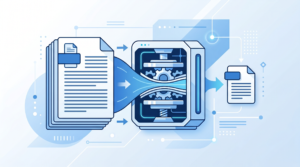
How to Resize Images Without Losing Quality
Need to resize images without losing quality? Whether you’re preparing photos for a website, shrinking an image for email, or adjusting dimensions for social media, getting the right size without sacrificing sharpness is a common challenge. The good news: you don’t need expensive software or technical skills. With the right approach — and the right free tool — you can resize any image in seconds, right in your browser.
This guide covers everything you need to know: how image resizing works, when quality loss happens, and how to avoid it every time.

Why Resizing Images Can Cause Quality Loss
Before diving into the how-to, it helps to understand why quality loss happens in the first place. Images are made up of pixels — tiny squares of color. When you resize an image, your software or tool has to either add pixels (upscaling) or remove them (downscaling).
Downscaling vs. Upscaling
Downscaling (making an image smaller) generally preserves quality well. You’re simply reducing the number of pixels, and a good tool will intelligently merge neighboring pixels to keep the image sharp.
Upscaling (making an image larger) is where quality problems arise. When you try to increase dimensions beyond the original size, the tool has to invent pixel data that doesn’t exist. This leads to blurring, pixelation, and a “blocky” appearance.
The practical rule: always resize down, never significantly resize up. If you need a high-resolution version of an image, you’ll need the original source file.
The Role of File Format
The format you save your resized image in also affects perceived quality:
- JPEG — Great for photos. Uses compression, so very high quality settings are recommended.
- PNG — Lossless format. Ideal for graphics, logos, and screenshots with text or sharp lines.
- WebP — Modern format offering smaller file sizes than JPEG or PNG at equivalent quality. Best choice for web publishing.
How to Resize Images Without Losing Quality (Step-by-Step)
The fastest and easiest way to resize images without losing quality is to use Toolivoo’s free Image Resizer. It works in any browser, requires no account, and processes your image locally — meaning your files never leave your device.
Step 1: Open the Tool
Navigate to the Image Resizer at toolivoo.com/image-resizer/. You’ll see a simple upload area — no distracting ads or forced sign-ups.
Step 2: Upload Your Image
Click the upload button or drag and drop your file directly onto the page. The tool accepts JPEG, PNG, WebP, and most common image formats. Your file uploads instantly and stays in your browser — nothing is sent to a server.
Step 3: Set Your Target Dimensions
Enter the width and height you need. Most tools offer two options:
- Exact dimensions — Set both width and height manually. Watch out for aspect ratio distortion if the proportions don’t match.
- Maintain aspect ratio — Enter one dimension (width or height) and the other adjusts automatically. This is the safest option for keeping images looking natural.
For web use, a width of 800–1200 pixels is usually sufficient. For email, aim for 600px wide or less. For social media, refer to the platform’s recommended dimensions (Instagram feed: 1080×1080, Twitter header: 1500×500, etc.).
Step 4: Download Your Resized Image
Click resize, then download. The whole process takes under 10 seconds. Your resized file will be sharp, properly proportioned, and significantly smaller if you reduced the dimensions.
Best Practices for Resizing Images Without Quality Loss
Even with the best tool, following a few simple rules makes a measurable difference in output quality.
Always Start With the Highest-Resolution Original
Before resizing, make sure you’re working from the original file, not a previously resized or compressed version. Re-compressing an already-compressed JPEG, for instance, stacks quality losses and degrades the image noticeably.
Use the Right Compression Level for JPEG
If you’re saving as JPEG, a quality setting of 80–90% gives an excellent balance of sharpness and file size. Going above 95% yields negligible visual improvement with a much larger file. Going below 70% produces visible compression artifacts — blocky patterns, especially around edges and text.
Match Dimensions to the Display Size
There’s no benefit to uploading a 5000px-wide image to a website if it’s displayed at 800px. Resize it before uploading. This reduces page load time without any perceptible quality difference for the visitor.
Use WebP for Web Images
If your platform supports WebP (WordPress, most modern CMSs, and all major browsers do), converting to WebP after resizing can cut file size by 25–35% compared to JPEG at similar quality levels. This is especially valuable for image-heavy pages.
Common Use Cases for Image Resizing
Website and Blog Images
Images that are too large slow down page load, which hurts both user experience and SEO rankings. Resizing images to match your theme’s content width — typically 1200px or less — before uploading is one of the single most effective performance optimizations you can make.
Email Attachments and Embedded Images
Large images in emails can trigger spam filters and cause slow loading on mobile. Resize images to 600px wide before embedding or attaching. You’ll reduce send size and improve deliverability.
Social Media Posts
Each platform has preferred image dimensions. Uploading an image that’s too large or wrongly proportioned can result in automatic cropping that cuts off important content. Use the Image Resizer to prepare platform-specific versions of each image.
Product Photos for Online Stores
E-commerce platforms often require images within specific size limits (e.g., under 2MB) and at specific pixel dimensions. Consistent image sizes across your product catalog also creates a cleaner, more professional look.
Frequently Asked Questions
Can I resize images without losing quality?
Yes — when you reduce an image’s dimensions, quality loss is minimal if you use the right tool and avoid excessive upscaling. Toolivoo’s Image Resizer preserves sharpness while reducing file size.
What is the best format to use when resizing images?
PNG is best for images with text or sharp edges. JPEG works well for photos. WebP is ideal for web use as it offers excellent compression with minimal quality loss.
Does resizing an image reduce its file size?
Yes. Reducing the pixel dimensions of an image directly reduces its file size because there are fewer pixels to store. A 4000×3000 image resized to 800×600 can be 90% smaller in file size.
Is Toolivoo’s Image Resizer free to use?
Yes, completely free. No sign-up, no subscription, and no software download required. It runs entirely in your browser.